Private deployment quickstart
Join an administrator-provided trackica instance, connect a computer, and complete your first agent task.
Before an agent can execute, the computer that runs it needs at least one supported AI coding tool installed and signed in — for example Claude Code, Codex, or Cursor. trackica does not ship these tools.
1. Get access to your private instance
trackica does not offer public-cloud signup. Ask your organization administrator for the private instance address, an account, and—if your organization uses it—the trackica Desktop installer. If your organization does not have an instance yet, contact sales to request a private deployment.
- Desktop: open the installer supplied by your administrator and sign in to the instance they provide.
- Web: open the private instance address supplied by your administrator and sign in using the configured method.
2. Connect a computer
Agents execute work on the computers you connect. Open Configure → Runtimes at the bottom of the sidebar:
- With Desktop: Desktop automatically registers this computer as a runtime and detects the installed AI coding tools. For a tool you just installed, click Refresh to detect it again.
- With Web, or to add another computer: click Add a computer in the top right, then run the installer and connection commands shown by your private instance on the target computer. Those commands contain the instance-specific address and credentials; use them exactly as provided instead of a public installer.
Success check: an online computer appears in the runtime list.
Instance administrators can use the private deployment installation guide. End users should use only the address and connection commands supplied by their administrator.
3. Create an agent
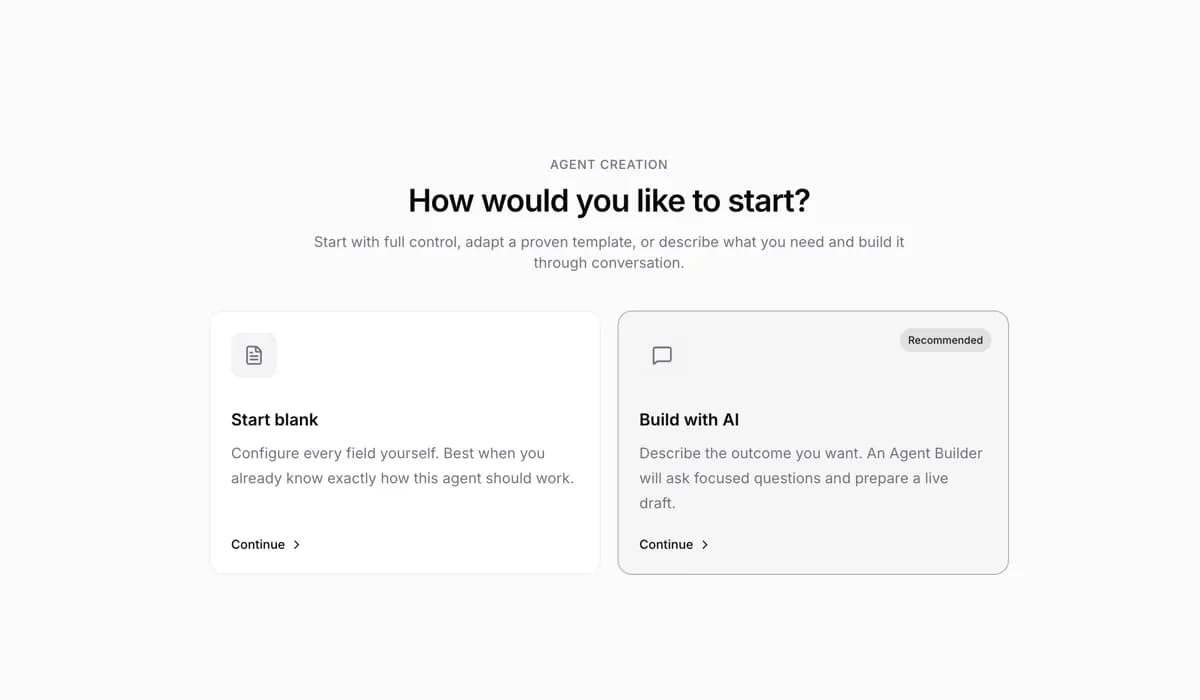
Open Workspace → Agents in the sidebar, click New agent, and pick a path:
- Start blank: fill in the fields yourself. Only a name is strictly required — confirm the runtime and AI coding tool, then create.
- Build with AI: describe what you want, and the Agent Builder asks questions and generates the configuration. This path needs an online runtime.
Everything else can be refined later — see Create and configure agents.
Success check: your agent appears in the agent list and shows as online.
4. Hand it your first issue
Click New Issue at the top of the sidebar (or press C). In the default agent mode:
- Under Created by, select the agent you just created.
- Describe the work in a sentence or two, for example "Explain how this workspace can be used."
- Submit. trackica creates the issue, sets the agent as the assignee, and starts executing immediately.
5. Watch progress and results
After submitting, open the issue: the execution log shows the run status, and the agent's progress and replies appear in the timeline.
Success check: the execution log status changes to Completed and the agent's reply appears in the timeline. To see the full transcript, click View transcript.
Common problems
| Symptom | Check first |
|---|---|
| No runtime found | Confirm the AI coding tool is installed and runs in a terminal. On Desktop, click Refresh; on the CLI path, rerun trackica setup. |
| Runtime shows offline | Keep Desktop open; on the CLI path, run trackica daemon status, and trackica daemon start if it is not running. |
| Issue stays queued | Confirm the runtime the agent uses is online. When a runtime hits its concurrency limit, new tasks keep queueing. |
For more cases, see Troubleshooting.
Next steps
- Core concepts — meet all of trackica's core objects in three minutes.
- How trackica works — how issues, agents, runtimes, and each run relate.
- Put agents to work — beyond assignment: @-mentions, chat, and Autopilots.